


National Casino App — What Works on Phones, What Doesn’t, and How We Set It Up
We spend most of our casino time on mobile now, so we checked how National Casino holds up away from a laptop.
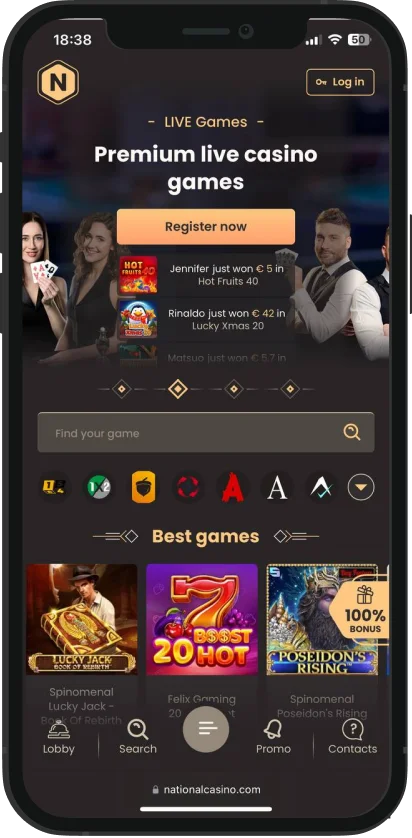
The short version: there isn’t a traditional App Store or Google Play app at the moment; the brand runs a full mobile site and encourages you to add it to your home screen as a progressive web application.
The end result still feels “app-like”: full-screen lobby, saved login, quick access to slots and live tables, and a working cashier.
In this review, we’ll walk you through installation (iOS/Android), what you actually get once it’s on your phone, device requirements, the mobile-web fallback, and a compact FAQ for common snags. Everything below reflects how the site behaves right now on nationalcasino.com / national-casino.com.
National Casino on Mobile: Two Simple Ways to Use It
Let’s start with the basics. There isn’t a traditional “store app” for National Casino right now. Instead, you’ve got two clean options that cover 99% of what players want on a phone.
We tested both on iPhone and Android in Slovenia, and here’s how they feel in day-to-day use.
First, what the two options are (and when to pick each):
- Mobile Web (no install): Just open nationalcasino.com through Safari, Chrome or any mobile browser and play straight away. This is perfect if you’re trying the casino for the first time or you don’t want to add anything to your phone. It’s the same account, the same wallet, and the same promotions as desktop, just inside your browser.
- PWA (Add to Home Screen): this is one extra tap that “pins” National Casino to your home screen. It then launches full-screen like a native app, remembers your login, and keeps the UI tidy (no browser bars). If you plan to play more than once, this is the route we recommend.

Whether you opt for the PWA or stick with a mobile browser, you’ll have access to all the important stuff:
- The same game lobby you know from desktop: slots, live casino, tournaments, and VIP.
- A seamless cashier for deposits and withdrawals, with the usual card and e-wallet flows.
- Access to bonus pages, VIP progress, and live chat inside the mobile interface.
What you don’t get today :
- No App Store / Google Play listing for National Casino at the moment.
- No official Android APK on the site right now. If you see an APK on a third-party domain, skip it, those aren’t official and can be unsafe.
How to Download & Install on Your Phone (The Safe, Easy Way)
Let’s dive into exactly what exists today. We’ll also explain how an APK install would work on Android if National Casino releases an official file later, so you know what “good” looks like and what to avoid.

iOS (iPhone/iPad): Add to Home Screen for the App-Like Experience
This takes 15 seconds and lets you launch the platform as you would any iOS app.
- Open Safari and go to nationalcasino.com.
- Tap the Share button (square with an arrow).
- Choose Add to Home Screen.
- Name it “National Casino” and tap Add.
- Use the new icon to launch. It opens full-screen and usually keeps you signed in, so you’re back in the lobby with one tap.
Why we do it this way: National Casino does not have a native app available on the App Store right now. The PWA route gives you the same lobby and cashier, minus the extra taps and fussing of opening the browser, keying in the URL, and logging in.
 Download
the IOS app
If “Add to Home Screen” isn’t showing:
- Make sure you’re in Safari (not inside another app’s in-app browser).
- Turn off Private Browsing, some iOS versions hide the option in that mode.
- Update iOS if you’re on something very old (PWA features are fully supported from iOS 13+).
How to remove it later: press and hold the icon → Remove App. Nothing stays behind; it’s just a shortcut.

Android: Add to Home Screen / “Install app” (PWA)
On most Android phones, Chrome gives you an “Install app” or “Add to Home screen” option for modern sites. National Casino supports this, and it’s the quickest path to an app-like window:
- Open Chrome and visit nationalcasino.com.
- Tap the ⋮ menu (top right).
- Pick Install app (or Add to Home screen, wording varies by device).
- Approve the prompt; you’ll see a National Casino icon appear.
- Launch from that icon for a dedicated, app-style window with your login remembered.
 Download the
android app
If you don’t see “Install app”:
- Update Chrome to the latest version.
- Make sure cookies and JavaScript are enabled (PWAs rely on them).
- Try again on a stable connection; the prompt sometimes appears after your first page load.
How to remove it later: long-press the icon → Uninstall / Remove.
About APKs on Android (Read This Before You Tap Anything)
Right now, National Casino does not publish an APK on its official site. If/when they do, here’s the only safe way to handle it:
- Download only from nationalcasino.com (never from an APK mirror or “free spins” blog).
- After download, open the file and allow “Install from this source” for Chrome (one-time toggle).
- Tap “Install,” then open the app and log in.
Until an official APK exists, stick to the PWA. It’s fast, safe, doesn’t require “unknown sources,” and gives you the same day-to-day experience we use ourselves.
App Features & Benefits: Why We Actually Use the PWA Instead of Hunting for a Store App
Before we get into the list, a quick scene-setter: we ran National Casino on everyday phones (one iPhone, one mid-range Android) around Slovenia on home Wi-Fi and normal 4G. No tricks, no dev settings. The PWA route (Add to Home Screen) ended up being the sweet spot: you get the same lobby as desktop, but it feels like a proper app.
One-Tap, Full-Screen, No Fuss
The home-screen icon skips the browser chrome entirely. You land straight in Slots / Live Casino / Promotions / Wallet with real estate to spare, no address bar nibbling at the top. That extra space matters on live tables where chip controls sit near the edge.
Logins That Don’t Slow You Down
You’re not juggling extra passwords. On iOS and Android, your password manager auto-fills, and your device’s Face ID/Touch ID/fingerprint handles the lock. That means you can close the window mid-commute and be back in a second without retyping anything. Security lives on the device where it should.
Payments That Stay Inside the Flow
Deposits and withdrawals open in secure, in-app views (no messy tab hopping). If your bank uses 3-D Secure (most do), the verification pops over your payment and drops you back in the cashier cleanly. If a screen ever looks stuck, backing out to Wallet and re-opening the method usually nudges the redirect along.
Smooth Gameplay on Wi-Fi and 4G/5G
Slots loaded quickly in our runs; reels felt responsive with zero input lag. Live tables were steady on normal home Wi-Fi and perfectly playable on 4G/5G, as long as the signal isn’t in a dead spot. If a stream stutters, switching to a lower-traffic network (or stepping off a congested café Wi-Fi) fixes it nine times out of ten.
Same Promos and VIP You See on Desktop
The mobile UI mirrors desktop: welcome bundle, Friday reloads, Monday spins, tournaments, VIP progress, all there. If there’s a mobile-only perk, it’ll be flagged in Promotions. Otherwise you’re seeing the same offers and wagering rules as on a laptop.
Light on Storage, Easy to Remove
Because it’s a PWA, you’re not swallowing hundreds of megabytes. The icon is just a neat wrapper around the site with some cached assets for speed. Want it gone? Long-press the icon → Remove. No deep-clean needed.
Push Alerts, Where Supported
Android Chrome supports web push out of the box; iOS Safari does from iOS 16.4+. If the site offers alerts in your region, you can opt-in for tournament reminders or reload nudges. Prefer quiet? Just leave notifications off, nothing breaks.
Quick Document Uploads for KYC
Verification doesn’t need a computer. The mobile uploader accepts ID photos and address proofs straight from your camera or photo library. Our tip: shoot documents in good light and crop the edges so the text is crystal clear, approval tends to be faster.
Search and Favourites That Actually Save Time
With big lobbies, scrolling is a trap. The mobile search bar finds games by title or provider (“Pragmatic,” “BGaming”) in seconds. Tap the heart to favourite; the PWA remembers it, so your regulars sit on top next time.
Small Wins on Accessibility
Larger text sizes carry into the interface, and most buttons are thumb-friendly. If you prefer landscape for live roulette or portrait for slots, the PWA handles the rotation without reloading the page.
If Something Feels Off, Try This
Delete and re-add the icon (this refreshes the PWA “service worker”), update your browser, clear the site storage for nationalcasino.com (doesn’t touch your account), and reopen the Wallet or Promotions tab. Nine times out of ten, that clears oddities after a site update.

App Requirements & Compatible Devices: What Actually Runs Well (And Why)
Here’s what we’ve learned from testing on normal phones. A recent OS, enough RAM, and a stable connection are the trio that make everything feel smooth, especially live dealer streams.
iOS (iPhone/iPad)
Safari’s PWA support is solid from iOS 13 up; newer versions handle video and caching better:
- Works on: iPhones/iPads running iOS 13+ (full PWA features from there).
- Best experience: iOS 15+, slicker video playback, fewer reloads.
- Storage to keep free: about 150 MB for cached art and UI.
- Nice to have: Face ID/Touch ID with iCloud Keychain for instant, secure logins.
- Fixes if stuck: use Safari (not an in-app browser), turn off Private Browsing, or clear Settings → Safari → Advanced → Website Data → nationalcasino.com, then re-add the icon.
Downloadthe IOS app

Android (Phones/Tablets)
Chrome’s “Install app / Add to Home screen” is the easiest, safest path right now.
- Works on: most phones/tablets with Android 8.0 (Oreo)+ using Chrome.
- Best experience: Android 11+ on current Chrome, smoother WebView, better video.
- Storage to keep free: around 200 MB after a few sessions (cached assets).
- Nice to have: fingerprint unlock + a password manager (Google Password Manager, 1Password, Bitwarden).
- Fixes if stuck: update Chrome; if cashier redirects fail, pause ad-blocking DNS/VPN for the payment step, then re-enable it.
Download theandroid app
Network & Performance Checklist (Both)
Live dealer video is the heavy lift; slots are light. A few tweaks avoid stutter:
- Connection: aim for 10 Mbps+; 25 Mbps+ Wi-Fi feels buttery for live tables.
- RAM: 3 GB+ keeps the lobby and live streams responsive; low-RAM phones may reload tabs.
- Battery: streaming drains power, plug in for long sessions; disable battery saver if it throttles video.
- Updates: keep Safari/Chrome current; PWAs inherit performance and security from your browser.
- Data hygiene: occasionally clear cached data for nationalcasino.com to reclaim space; keep cookies if you want to stay logged in.
Mobile Web Version: If You Don’t Want an “App” at All
Not everyone wants icons or installs, and that’s fine. You can play directly in your browser at nationalcasino.com and get the same account, wallet, promos, VIP progress, and live chat. In everyday use, the mobile site feels almost identical to the PWA. The main difference is the visible browser bars and the extra step of opening your browser first.
How it feels in practice: we ran a few sessions in Safari (iPhone) and Chrome (Android). Slots loaded fast, live dealer streams were stable on home Wi-Fi and solid on 4G/5G, and the cashier worked without bouncing us into random tabs. If you’re just checking the casino out, or you prefer to keep your phone lean, the mobile
web route is perfectly serviceable.
A couple of small wins to set it up right:
- Save your login in your password manager and allow cookies; it speeds up re-entry.
- If something looks stuck during a payment (3-D Secure screen, for example), back out to Wallet and reopen the method; mobile browsers sometimes block the first redirect.
- Private/Incognito is okay for a quick look, but it can log you out more often and may block local caching, so performance is a touch worse.
- If the main domain ever struggles in Slovenia, use live chat to grab a working mirror and bookmark that one in your browser; you’ll still get the same content, just via a fresh URL.
Bottom line from us: if you’re going to play more than once, add the icon (PWA) so you jump straight into the lobby with one tap and a bit more screen space. If you’re just trying the casino, or you keep your phone minimal, the browser is absolutely fine.
FAQ
1. Is There a Real App Store or Google Play App for National Casino?
2. Can I Download an APK for Android?
3. Will My Desktop Login Work on Mobile?
4. Do I Get the Same Bonuses on Mobile?
5. I Can’t Find a Game I Play On Desktop. Help!
6. The App Icon Stopped Working After an Update. How Do I Fix It?
7. My Payment Failed on Mobile. What Now?
Responsible Gaming
National Casino offers responsible gambling tools directly in your account: deposit limits, self-exclusion, and reminders to help you stay in control. If you’re in Slovenia, remember that only locally licensed operators are authorised to run online casinos. National Casino operates under a Curaçao licence, so access may change. Play responsibly, keep your limits realistic, and seek support if gambling stops being fun.
Conclusion
National Casino is an international gaming platform operated by TechSolutions Group N.V. under a Curaçao licence. Slovenian players will find a wide lobby of slots, live dealer tables, and weekly promotions like Friday Reloads and Monday Free Spins. The site runs smoothly on mobile through its PWA, with e-wallets providing the fastest payouts. While it is not locally licensed in Slovenia, many players choose it for its variety, 24/7 multilingual support, and transparent VIP ladder.
Join now